
DREO
DREO CorpLifestyle
4.82.10K Reviews
- Version
- 3.7.0
- Installs
- 500.00K
- Age Rating
- Everyone
Screenshots
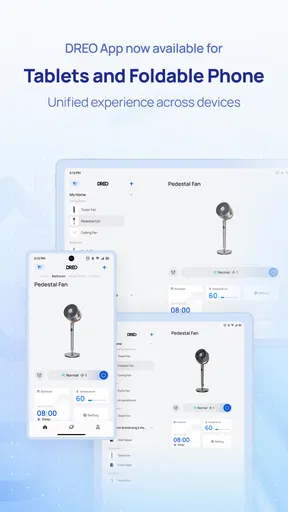
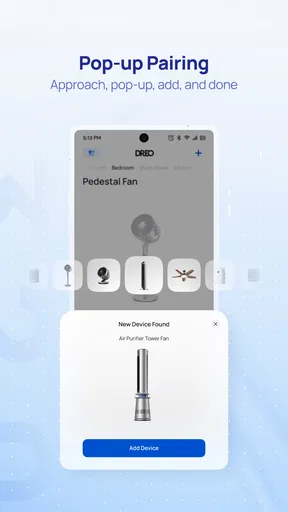
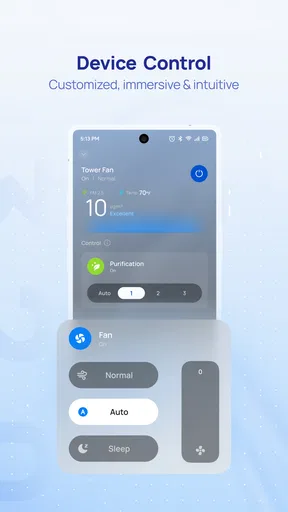
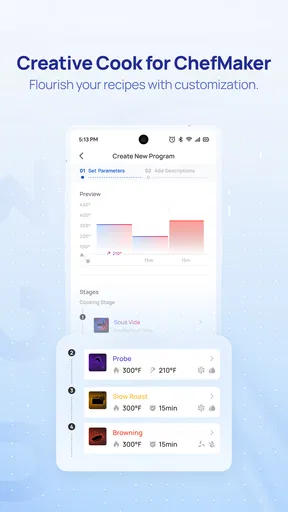
Our Review of DREO
 Analysis by Appyee
I approached DREO as a practical lifestyle companion rather than an app I would open for entertainment. Developed by DREO Corp, it is designed to sit between the company’s connected home products and the person using them every day. That makes the quality of the experience depend on more than the screen itself: setup, network conditions, device compatibility, and the way you organize your home all matter. In my experience, that is the most useful way to judge it.
The app is free, rated for Everyone, and belongs to the lifestyle category. It has attracted over 500 thousand installs and an average rating of 4.8 from around 28 thousand ratings, which suggests that many owners find it worthwhile once everything is working. It first appeared on September 30, 2021, and the current version is 3.7.0 for devices running Android 8.0 or later. Those details make it approachable for a wide range of phones, although an older handset may still feel less responsive than a newer one.
Where the experience usually gets stuck
The first thing I noticed is that a smart-home app can feel confusing even when its individual screens are simple. The difficulty often comes from the order of operations. A user may expect to open the app, see a product immediately, and start controlling it. In practice, the phone, home network, account, and appliance all need to agree before that smooth experience appears.
That is why I would not judge DREO after only a few seconds if a device is missing from the main screen. The more useful question is where the connection stopped. Is the phone connected to the intended home network? Is the product powered on and ready for pairing? Is the app signed into the account you meant to use? Checking those points in sequence is usually more productive than repeatedly tapping the same discovery button.
A less obvious source of frustration is switching between networks during setup. Many people begin pairing while their phone is using mobile data, a guest network, or a different wireless connection from the one intended for the appliance. Even when the internet is working normally, the phone and product may not be able to complete the local handoff. I recommend starting with the phone on the same ordinary home network you expect the product to use, then keeping the phone nearby until setup is complete.
The important distinction is between an app problem and a setup problem. If the app opens normally but cannot find a product, that does not automatically mean the software is broken. A powered-off appliance, an incomplete pairing state, or a changed network can create exactly the same symptom. Treating those possibilities separately saves time and avoids unnecessary reinstalls.
What I check before blaming the app
I start with the simple physical checks. The product should be powered, showing whatever normal ready state it uses, and close enough to the wireless router for the first connection attempt. I also make sure the phone itself has a stable connection and that I am not moving between networks while the process is running. These are ordinary checks, but connected-home setup is unusually sensitive to small interruptions.
Next, I close other demanding apps and reopen DREO. This is not a magic fix, but it gives the app a clean session and removes the confusion caused by leaving a setup screen idle for too long. If the phone has been running for several days, restarting it can also clear temporary network behavior without changing any personal settings.
I would also confirm that the app is current and that the phone meets the stated minimum of Android 8.0. A compatible operating system does not guarantee perfect performance on every device, but using an older unsupported system makes troubleshooting harder because the cause may be outside the app. On iOS, I would apply the same principle: keep the operating system and app in a normal supported state before investigating deeper.
One practical habit helps more than people expect: add and test one product at a time. If several devices are being prepared together, it becomes difficult to tell which one failed and whether the issue is the product, the account, or the network. A single-device setup gives you a clear baseline. Once it responds reliably, move to the next product.
Setup checks that prevent repeated attempts
I find it useful to decide in advance which account should own the home setup. Creating a scattered arrangement across multiple accounts can make a product appear absent when it has actually been added elsewhere. If another family member began the setup, I would first establish who is managing the household devices rather than starting a second registration immediately.
During pairing, I keep the phone awake and avoid walking away from the product. A short interruption may leave the user unsure whether the process finished. Instead of pressing the setup control repeatedly, I wait for a clear result, then check whether the device appears in the app and whether a basic command works. The first successful command is more meaningful than a completed-looking animation.
Another useful check is naming. I prefer short, recognizable names based on location or purpose, such as a room name, rather than several nearly identical labels. This becomes important once the home contains more than one DREO product. Clear naming is not just cosmetic; it reduces the chance of controlling the wrong item when I am in a hurry.
I also avoid changing the home network immediately after pairing. First I verify that the product can be opened from the app and that its basic controls respond. Only then would I make router changes, move equipment, or reorganize the household network. Establishing one known-good state makes later troubleshooting much easier.
Recovering a workflow when control stops working
Once a product has been added, the most common annoyance is not discovering it but recovering the workflow after something changes. A router may restart, the phone may switch to another network, or the appliance may lose power. In those moments, I use a gradual recovery process rather than deleting everything at once.
First, I reopen the app and check whether the product is still visible. If it is present, I test one simple action instead of trying several controls rapidly. A delayed response can look like a complete failure when the connection is merely recovering. I give the command a moment, then check the product itself if that is practical.
If the product remains visible but does not respond, I check the phone’s connection and the product’s power. I then close and reopen the app. This preserves the existing setup and is less disruptive than removing the device. Re-adding should be a later step, not the first reaction, because it can erase a working organization scheme and create more uncertainty.
When a product disappears after a network change, I treat that as a connection recovery task. I confirm that the phone is using the new intended network, then inspect the product’s ready state and follow the normal in-app recovery path. I would not assume that reinstalling DREO will repair a network mismatch. Reinstallation can refresh the app, but it cannot make a powered-off or unreachable product communicate.
There is also a useful difference between one failed device and every device failing. If only one product is affected, I focus on its power, location, and individual setup. If all products become unavailable at once, I look first at the phone’s network, the router, or the account session. This simple comparison narrows the problem without requiring technical tools.
How I keep a busy home manageable
DREO is more useful when I treat it as the place where routines are organized, not merely as a remote control. I keep the device list tidy, use names that make sense from across a room, and avoid adding duplicate entries while experimenting. That discipline matters because a smart-home interface becomes harder to trust when old or unclear entries remain beside active ones.
For a realistic evening scenario, imagine returning home after the router has restarted while you were away. I would not immediately rebuild the entire household. I would check whether the phone is back on the home network, open DREO, and see which devices remain visible. If one product responds, I use it as a reference point. If none respond, I investigate the shared connection before touching individual device settings.
This approach also helps when another person in the household reports that a control is missing. Before assuming the app has different features for different people, I would check which account is open and whether the person is looking at the same device list. Clear ownership and consistent naming prevent many “missing device” reports from becoming unnecessary setup work.
For users who like to experiment, I recommend changing one thing at a time and noting what happened. If you change the router, move the product, update the phone, and reinstall the app together, you lose the ability to identify the real cause. A small written note such as “product visible before network change” can be surprisingly helpful when troubleshooting later.
When the app is not the cause
Some problems sit outside DREO. A weak wireless signal, a temporary router issue, a product that has lost power, or a phone that is connected through an isolated guest network can all look like app failure. The app may be showing the result of a communication problem rather than causing it.
I pay particular attention to timing. If control stopped immediately after a power interruption or network change, I investigate that event first. If the app itself crashes, freezes on multiple screens, or behaves incorrectly even when no product is being accessed, then the software becomes a more plausible suspect. Separating these patterns keeps the diagnosis grounded.
Reinstalling is therefore a last-resort refresh in my workflow, not a universal solution. Before doing it, I make sure I understand how my devices are organized and which account I use. A clean installation may remove local confusion, but it can also require me to repeat setup steps. I would choose it when ordinary reopening and connection checks have failed, not simply because a single command was slow.
The same caution applies to resetting a product. A reset can be appropriate when the normal recovery route no longer works, but it should not be the first move for a temporary network interruption. Resetting too early turns a short outage into a full setup task. I prefer to preserve the existing configuration whenever possible.
Who will appreciate DREO most
I think DREO makes the most sense for someone who owns DREO connected products and wants one place to organize them. It is particularly suitable for people who prefer app-based control over searching for physical controls, and for households that benefit from consistent device names and a shared approach to setup.
It is less compelling for someone who does not use DREO hardware. As a lifestyle app, its value is tied to the products it manages, so downloading it without a relevant device gives little reason to return. I would also hesitate to recommend it to a person who wants a completely brand-neutral smart-home dashboard. A broader platform may be a better fit when the household is built around equipment from many manufacturers and unified control is the main priority.
Users who dislike troubleshooting should know what they are accepting. DREO can simplify daily control after setup, but the initial connection still requires patience and orderly checks. If a person expects every product to appear instantly regardless of network conditions, the experience may feel more demanding than a conventional standalone appliance.
On the other hand, people who are willing to spend a little time creating a clean setup can gain a more convenient daily workflow. The strongest benefit is not a single button; it is having device access, naming, and recovery habits in one familiar place.
My practical verdict after using it
I see DREO as a focused companion for DREO’s connected-home ecosystem rather than a universal answer to every smart-home need. Its free entry point and Everyone age rating make it easy to try, while the strong average rating and large installed base indicate that the basic idea works well for many owners. The current 3.7.0 release also gives users a clear modern version to work with on Android devices running 8.0 or later.
My recommendation comes with one condition: approach setup as a small system, not as an isolated app download. Keep the phone and product on the intended network, add devices individually, use clear names, and test a basic action before changing anything else. When control fails, compare one affected device with the rest and investigate shared network conditions before deleting or resetting.
Those habits address the main friction I encountered and make the app feel considerably more dependable. I would choose DREO for a household already using DREO products and looking for simpler everyday management. I would skip it if I needed a brand-independent control center or had no compatible DREO hardware. For the right user, DREO is most valuable when it turns a collection of separate home devices into a routine that is easier to understand and recover.
Verdict
Strengths of DREO
- Smart schedules make it easy to automate heating and cooling routines.
- Voice assistant support allows convenient hands-free temperature control.
- Detailed device settings help fine-tune comfort for different rooms.
- Clean interface makes essential controls quick to find.
- Remote access lets you adjust compatible devices while away from home.
Limitations of DREO
- The app’s usefulness depends on owning compatible DREO hardware.
- Some advanced controls may require an account and internet connection.
- Device setup can be confusing when Wi-Fi pairing fails.
- Features and controls vary noticeably between different DREO products.
- Background connectivity may increase battery usage on some phones.
Similar Picks in This Category
View All
SmartThings
Samsung Electronics Co., Ltd.4.6

Google Home
Google LLC4.0

Pinterest4.2

Astrotalk - Talk to Astrologer
Astrology & Horoscope4.7

My Verizon
Verizon Consumer Group4.5

Samsung Wallet (Samsung Pay)
Samsung Electronics Co., Ltd.4.1
Frequently Asked Questions
What is the DREO app used for?
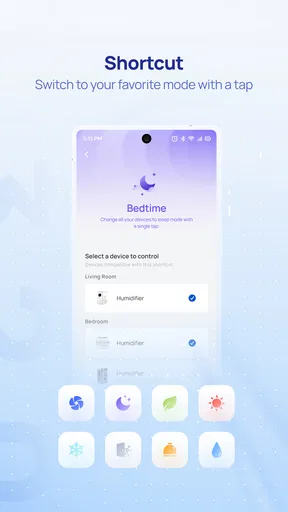
DREO is the companion app for compatible DREO smart home appliances, including products such as fans, heaters, air purifiers, humidifiers, and other connected devices. After pairing a supported product, the app can provide remote controls, operating modes, schedules, timers, temperature or humidity information, and device settings. The exact features depend on the DREO model you own, so not every option appears on every appliance.
Is DREO compatible with both Android and iPhone?
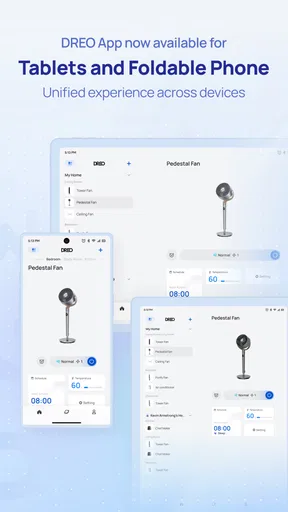
Yes, DREO is designed for use on supported Android smartphones and iPhones. Before downloading, check the app listing for the current operating-system requirements, because compatibility can change with future updates. You will also need a compatible DREO appliance and a reasonably stable Wi-Fi connection for setup and remote features. Some devices may require a 2.4 GHz Wi-Fi network rather than a 5 GHz connection.
How do I connect a DREO appliance to the app?
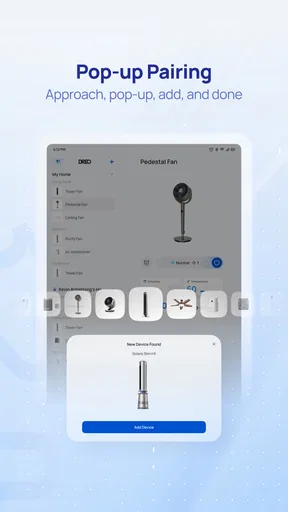
To connect a product, install DREO, create or sign in to an account if requested, and follow the in-app device-pairing instructions. Usually, the appliance must be powered on and placed into pairing mode before the app can find it. Keep your phone close to the device, allow requested permissions, and enter your Wi-Fi details carefully. If pairing fails, reset the appliance’s network settings and try again.
Can I control DREO devices remotely or create schedules?
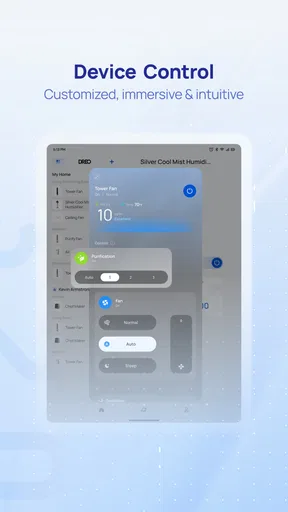
For compatible products, DREO allows you to control the appliance from your phone, even when you are away from home, provided the device remains connected to the internet. Depending on the model, you may be able to adjust speed, temperature, airflow, modes, lighting, or other settings. Scheduling and timer functions can also automate daily routines, although available controls vary between products and regions.
Is the DREO app free, and does it require an account?
DREO can generally be downloaded without paying, but you need a compatible DREO appliance to use its main smart-control features. The app may ask you to create an account or sign in so it can manage devices and provide remote access across phones. Review the permissions and privacy information during setup, and remember that app functionality depends on the appliance model, internet connection, and continued software support.
